Struggling to find the perfect USB-C hub for your customers? You see endless options but worry about picking the wrong one, leading to returns and unhappy buyers.
The best USB-C hub configuration depends entirely on your target customer. Instead of looking for one "best" product, focus on matching specific port combinations to user needs—like the minimalist traveler, the power-using creative, or the budget-conscious enterprise. This approach minimizes sourcing risk and maximizes market fit.
I've been in the electronics export business for over 15 years, and I see buyers make the same mistakes. They focus only on the number of ports or the lowest price. This is a trap. A better way is to understand why certain configurations exist and who they are for. This guide will walk you through that process. Let's look at how to choose hubs that will actually sell and keep your customers happy.
Why are USB-C Hubs and Docking Stations in High Demand?
Laptops are getting thinner, but user needs are not. This creates a big problem: modern laptops have fewer ports, but people still need to connect monitors, keyboards, and other devices.
The demand for USB-C hubs is driven by the limited ports on modern laptops like MacBooks and Ultrabooks.1 Users need a simple way to connect their existing peripherals, external displays, and wired internet. For retailers and wholesalers, this translates into a consistent, high-demand product category.
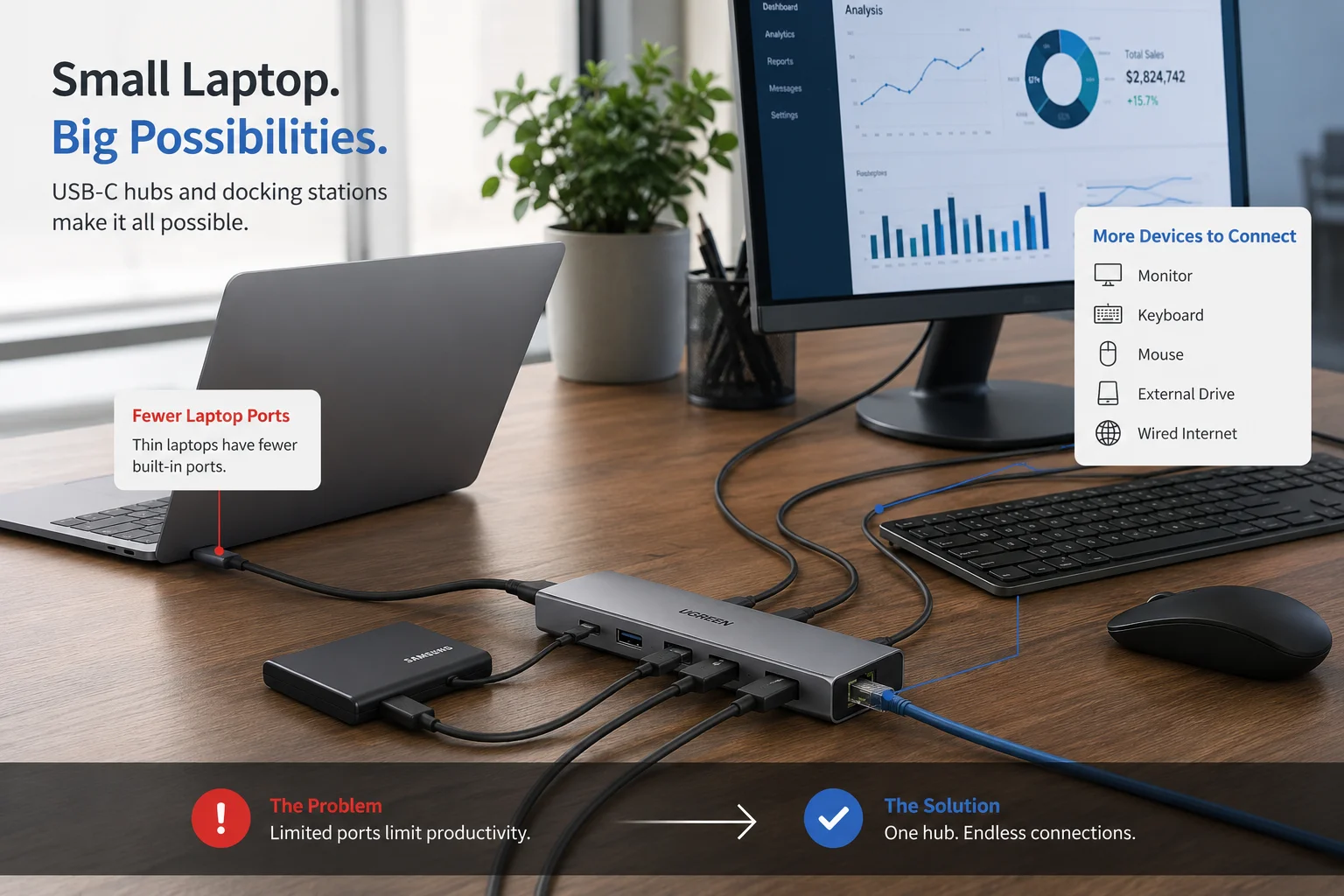
In my experience talking to B2B buyers from the US and Europe, the hub market is not just a trend; it's a fundamental need. When Apple removed most ports from the MacBook, it created an entire industry overnight.2 Other brands followed, making slim designs a priority. But people's desks haven't changed. They still have their favorite mouse, a big 4K monitor, and the need for a stable, wired internet connection for video calls.
A USB-C hub solves this disconnect instantly. It's a single, plug-and-play solution. This makes it an easy purchase for the end-user and an easy product for you to stock. The key is stocking the right ones. A common question we get is, "Which hub sells best?" The answer is always, "It depends on who you are selling to." Understanding this is the first step to a successful sourcing strategy.
What do Laptop Users Expect from a Modern USB-C Hub?
Users are looking for a magic box that just works. They plug it in, and all their devices connect without any fuss, lag, or overheating. It's that simple, and that complicated.
Laptop users expect a USB-C hub to be a reliable, all-in-one solution. They want it to extend their display, charge their laptop, transfer files quickly, and connect accessories—all at the same time without overheating or crashing. Reliability and performance are more important than just having many ports.
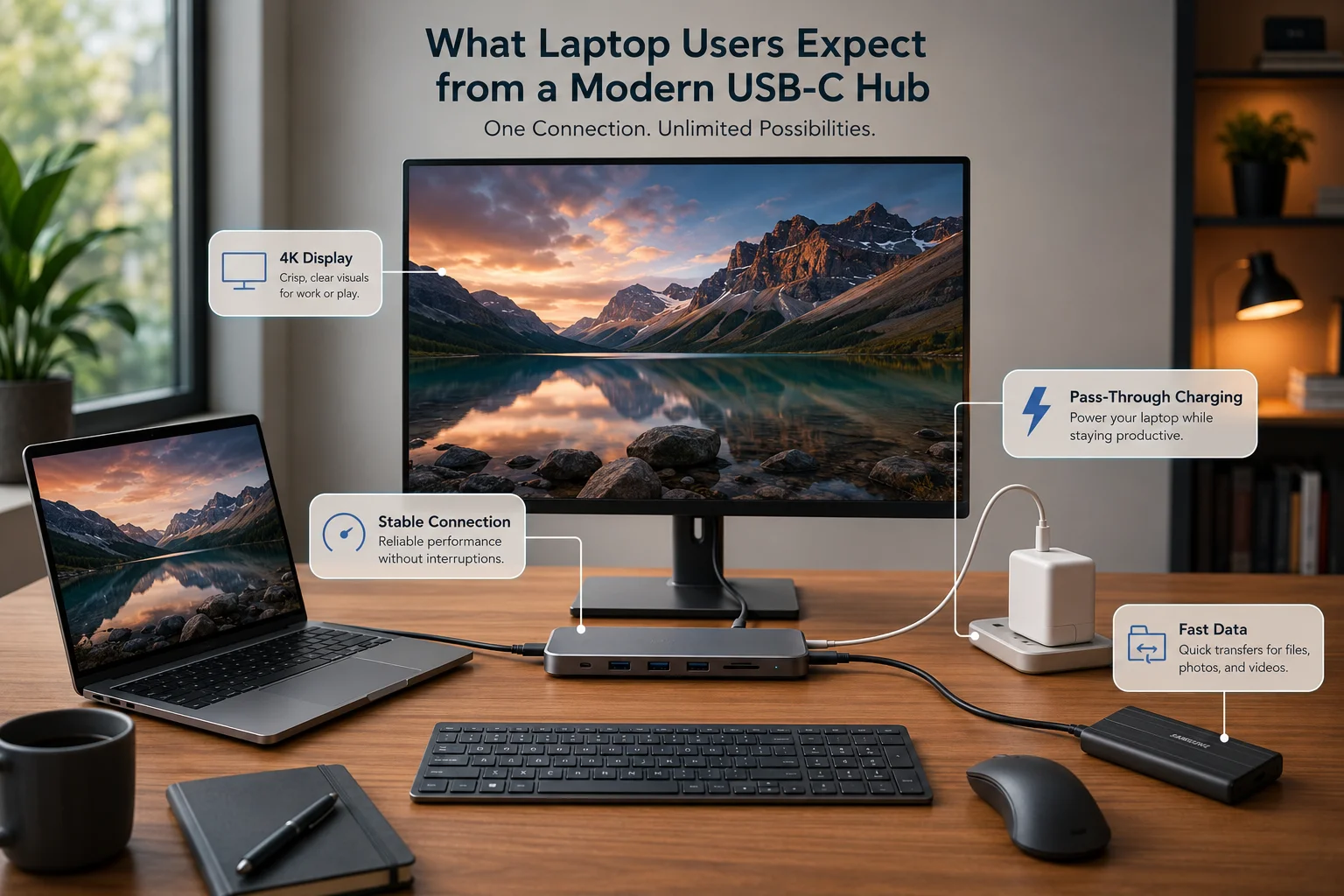
What buyers often miss when looking at spec sheets is the user's frustration when things go wrong. A hub that promises 4K video but only delivers a flickering screen is a guaranteed return. A hub that gets too hot to touch creates distrust.3 A hub where the Wi-Fi or Bluetooth cuts out when you plug in a hard drive is a nightmare.4 These are the real-world problems that lead to bad reviews and lost sales.
From my conversations with hundreds of wholesale clients, the happiest ones are those who prioritized performance for a specific user. For example, a client targeting graphic designers focused on hubs with excellent 4K@60Hz video output, even if it meant fewer USB-A ports. Another client, targeting office workers, prioritized hubs with a stable Ethernet port and multiple USB-A ports for keyboards and mice. They understood that users don't just want ports; they want a seamless extension of their laptop's capability.
What are the Top 5 USB-C Hub Configurations Wholesale Buyers Should Stock?
You feel overwhelmed by all the different port combinations. Choosing the wrong mix means you'll have dead stock sitting in your warehouse while your competitors sell out.
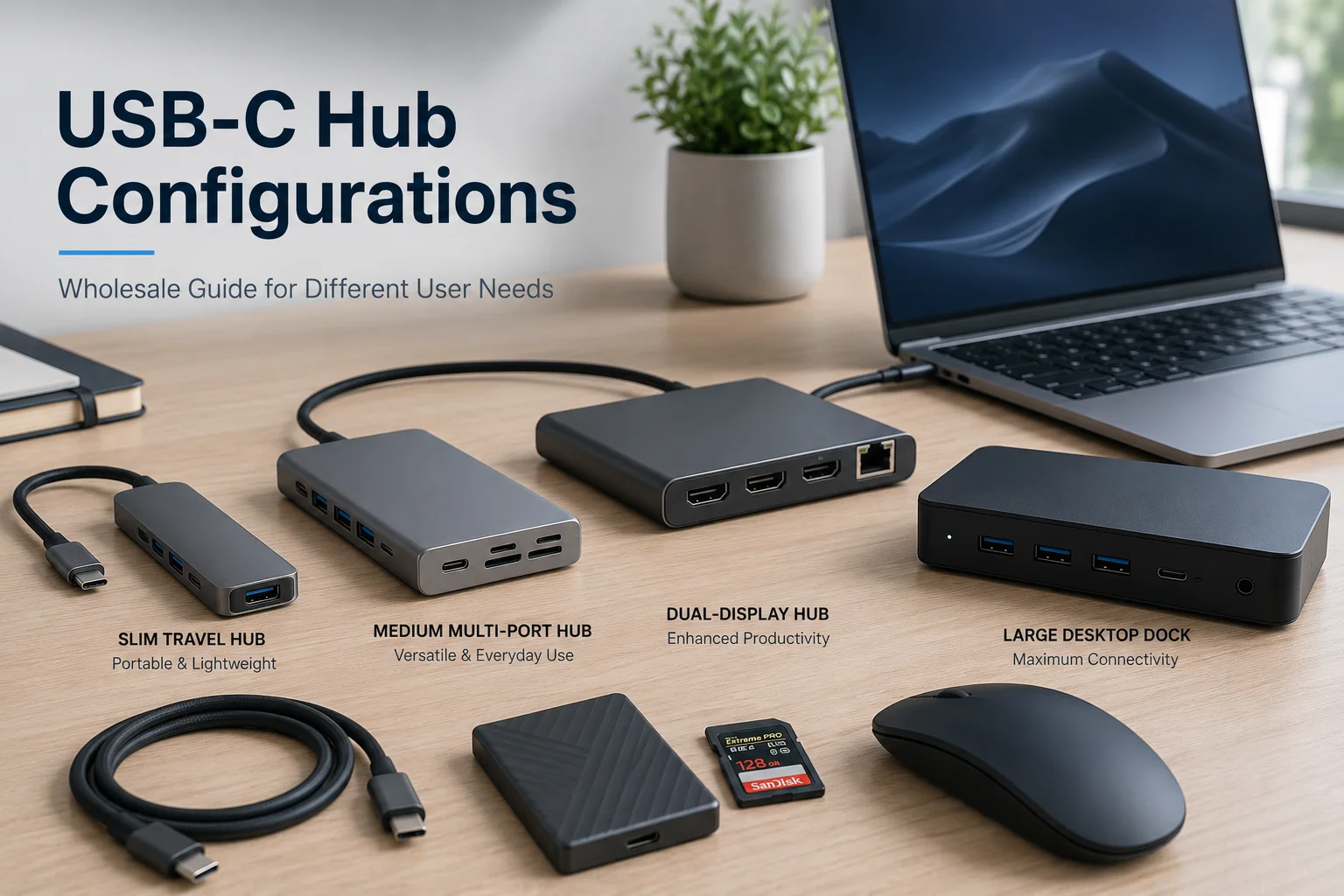
Focus on user profiles, not just port counts. A successful inventory includes a mix of configurations for different needs: the essential traveler, the everyday multi-tasker, the dual-display professional, the creative powerhouse, and the full desktop replacement dock. This strategy targets specific market segments effectively.
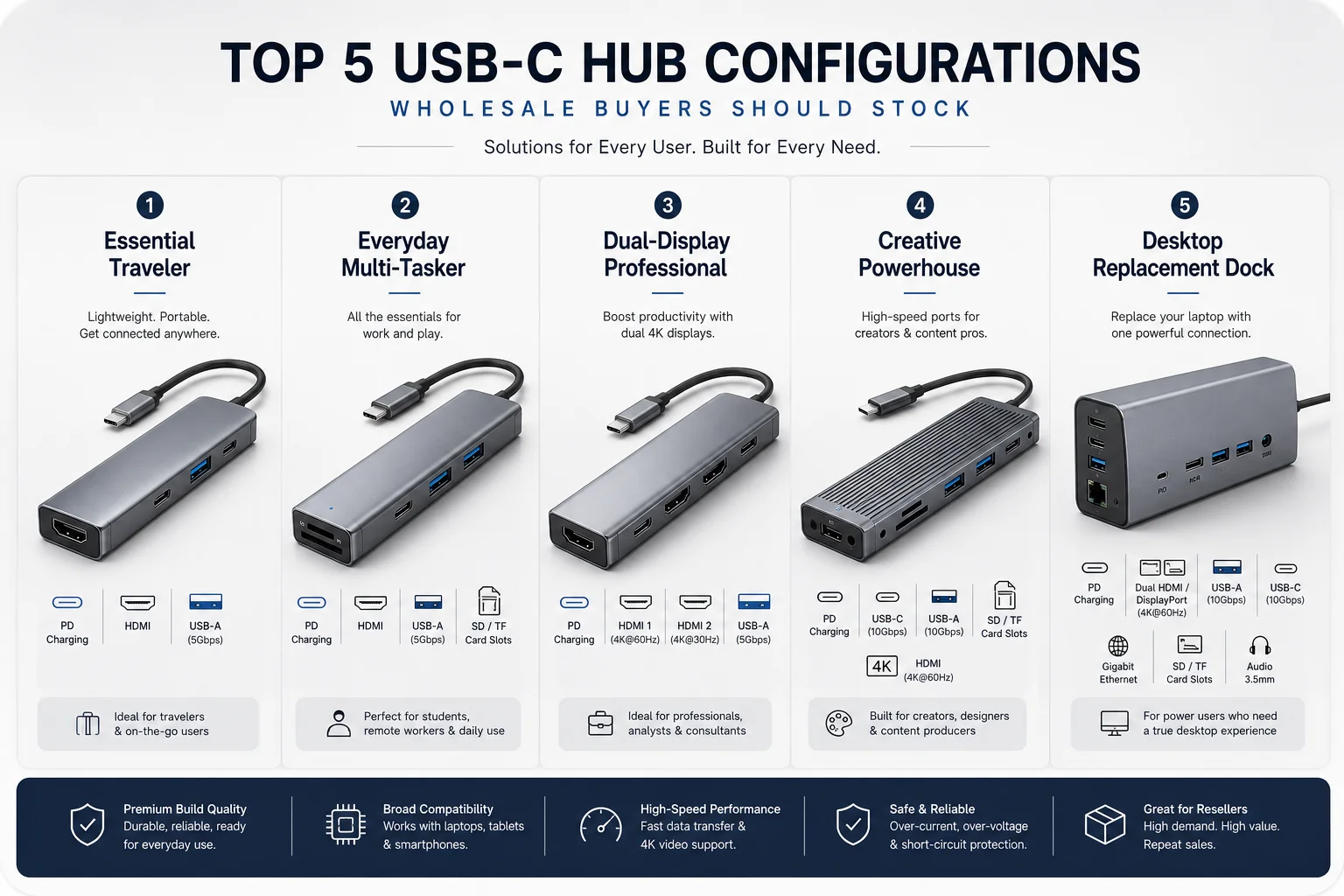
Stop trying to find one "perfect" hub. It doesn't exist. The market is segmented, and your inventory should be too. In my 15 years of helping clients source electronics, I've found that the most successful strategy is to think in terms of solutions for different people. A smarter way to frame your request to a supplier is not "I need a 7-in-1 hub," but "I need a hub for frequent travelers who primarily need video output and charging." This changes the conversation from specs to solutions.
Here is a breakdown of the top 5 configurations based on user profiles:
| Configuration Profile | Key Ports | Target User | Key Sourcing Question |
|---|---|---|---|
| 1. The Essential Traveler | 1x HDMI, 1x USB-A, 1x PD Charge | On-the-go professionals | "How compact and lightweight is it?" |
| 2. The Everyday Multi-Tasker | 1x HDMI, 2-3x USB-A, PD, SD Reader | Home/office general users | "Is the performance stable with all ports in use?" |
| 3. The Dual-Display Pro | 2x HDMI/DP, PD, USB-A, Ethernet | Programmers, analysts | "Does it support dual 4K displays, and what chipset is used?" |
| 4. The Creative Powerhouse | HDMI 4K@60Hz, UHS-II SD, USB 10Gbps, PD 100W | Photographers, video editors | "What are the actual data transfer speeds and PD wattage?" |
| 5. The Desktop Dock | 3+ Displays, 5+ USB ports, Ethernet, Audio, 100W+ PD | Permanent desk setups | "What are the heat dissipation test results under full load?" |
This framework helps you de-risk your inventory. Instead of guessing, you are making an informed bet on a specific customer type.
Are HDMI 4K@60Hz, Dual Display, and Video Output What Buyers Should Check?
Your customers are complaining about flickering screens and hubs not supporting their monitor's resolution. You advertised 4K, but their experience is choppy and frustrating, leading to negative reviews.
Yes, video output is a critical failure point. Buyers must verify the exact specifications. A hub claiming "4K HDMI" might only support it at a laggy 30Hz. For smooth video, 4K@60Hz is essential. For dual displays, you must ask if the hub supports extended mode on macOS.
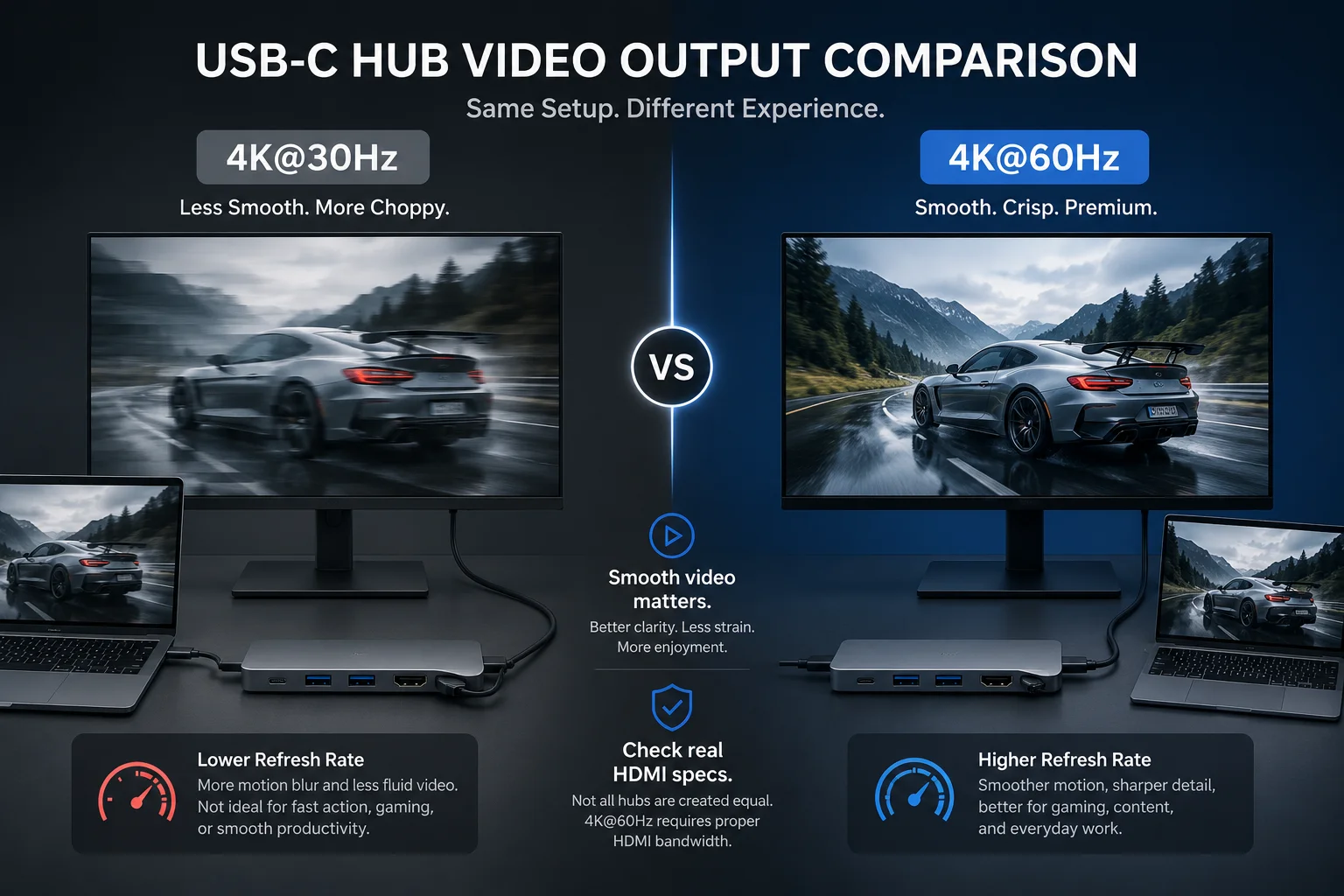
This is one of the biggest traps for wholesale buyers. The spec sheet says "4K," but the devil is in the details. 4K at 30Hz is fine for presentations, but it feels sluggish and causes eye strain for daily use.5 4K at 60Hz provides a smooth, fluid experience, which is what most users expect. You must ask your supplier specifically: "Does this port support HDMI 2.0 for 4K at 60Hz?"
Dual display support is even more complex.
- DP Alt Mode: Most simple hubs use this. On Windows, it can run two different "extended" displays. But on macOS, it can only mirror the displays, showing the same image on both external monitors.6 This is a huge point of frustration for Mac users.
- DisplayLink: More advanced (and expensive) hubs use DisplayLink chipsets.7 This technology acts like an external graphics card and allows Macs to run two or more different extended displays.
A smart question to ask your supplier is, "What chipset does this hub use for video output, and can you provide a compatibility report for recent Dell, HP, and Apple laptops?" Don't just trust the spec sheet; ask for proof.
Do PD Pass-Through Charging, Power Limits, and Device Compatibility Matter?
A customer plugs in your hub and their laptop isn't charging, or it's charging very slowly. You sold them a "charging hub," but it's not delivering enough power, creating another reason for returns.
Absolutely. Power Delivery (PD) is not standard across all hubs. You must check the maximum wattage (e.g., 60W vs. 100W) and understand that the hub itself consumes power (typically 5-15W)8. A 100W hub might only deliver 85W to the laptop.
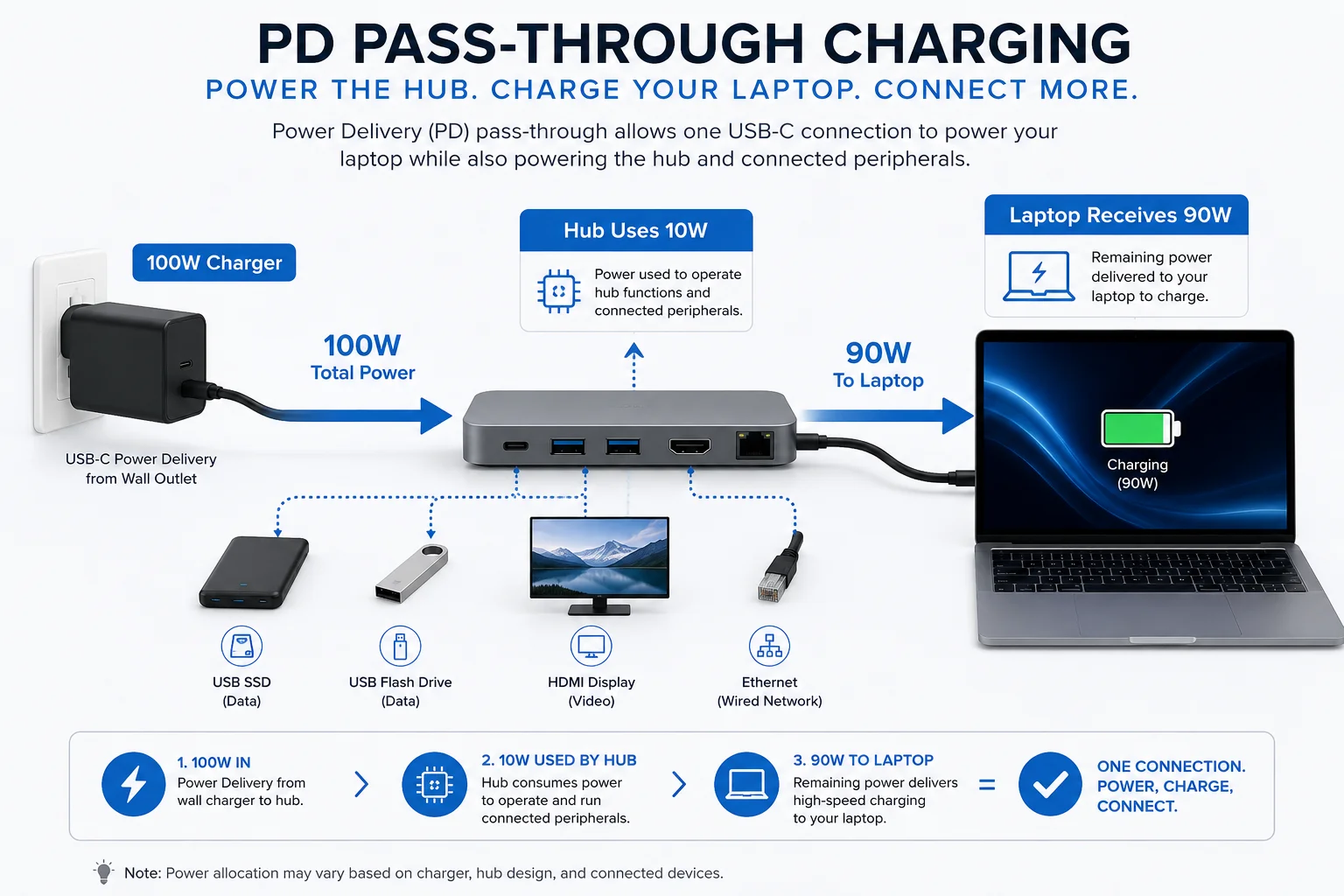
Let me share a common scenario. A buyer sources a "60W PD hub" to sell to MacBook Pro users. But a 16-inch MacBook Pro needs an 87W or 96W charger to charge at full speed.9 The 60W hub will either charge it very slowly or not at all under heavy load. The customer is unhappy, and the product gets a 1-star review.
Here's how to avoid this. First, know your target user's device.
- Ultrabooks & MacBook Airs: A 60W PD hub is usually sufficient. It passes through enough power (~45-55W) for these devices.
- High-Performance Laptops (MacBook Pro, Dell XPS 15): You need to stock a 100W PD hub. After the hub uses its share of power, it will deliver the 85-90W needed to charge these powerful machines properly.
A smarter way to frame your request to a supplier is: "I need a 100W PD hub. Can you confirm the power consumption of the hub itself and provide the net power delivered to the laptop?" This shows you understand the technical details and expect a high-quality product. Also, always ask if the hub's PD port can also transfer data or if it's for charging only.
Are Gigabit Ethernet, USB-A, SD Card Readers, and Other Practical Ports Important?
You're trying to decide between a hub with three USB-A ports or one with two USB-A ports and an Ethernet jack. Making the wrong choice means you miss out on a whole segment of the market.
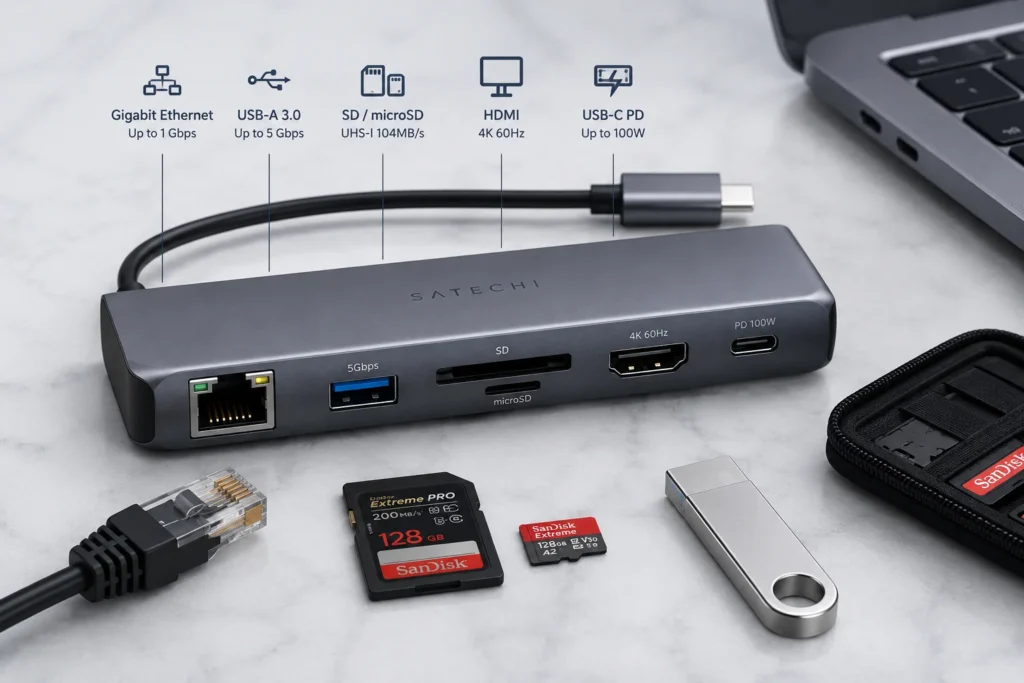
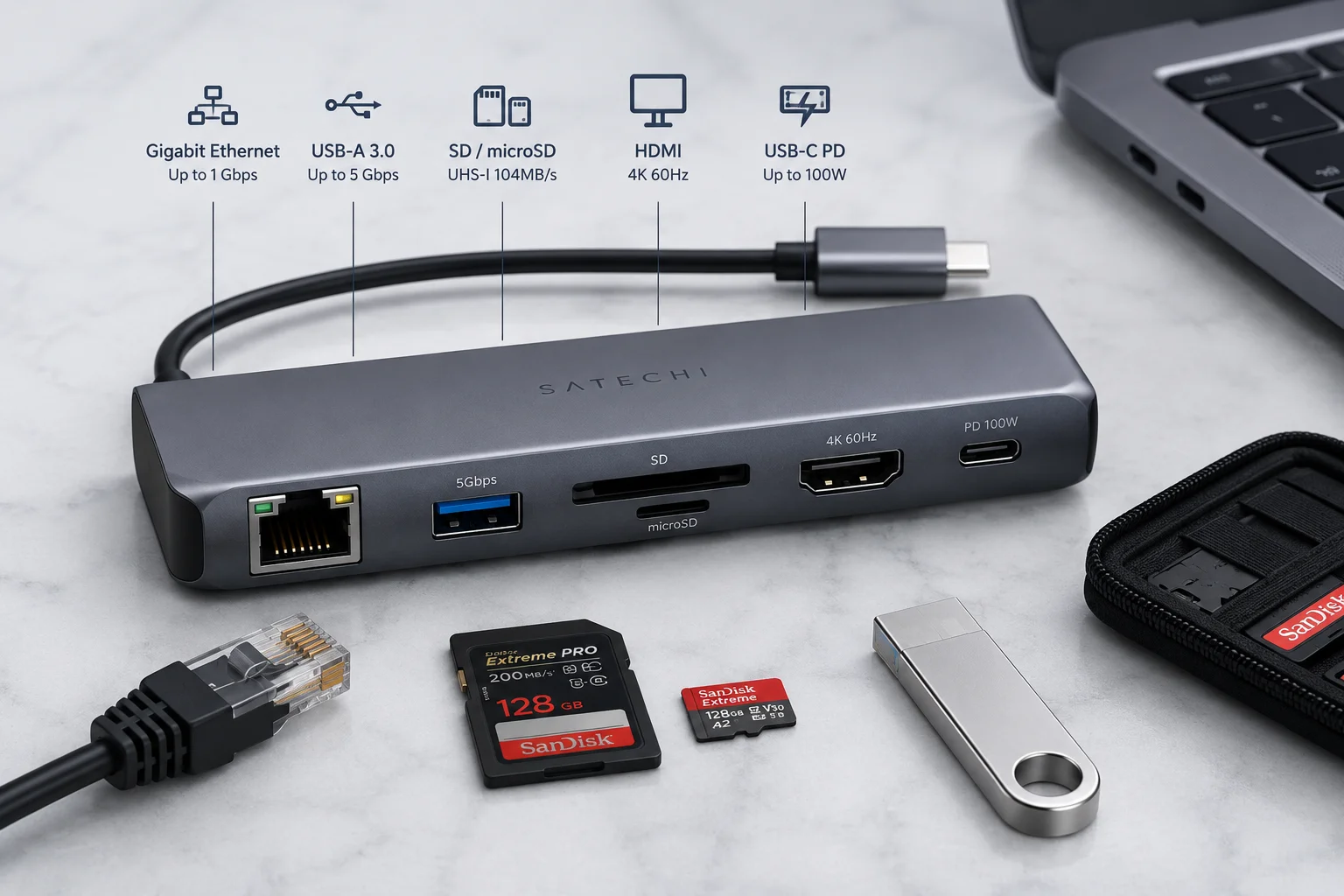
These practical ports are often the deciding factor for many users. A Gigabit Ethernet port is a must-have for professionals needing stable internet. Fast USB-A ports and SD card readers are essential for photographers and anyone transferring large files.
What buyers often miss is the quality of these ports. It's not enough just to have them.
- Ethernet: Is it Gigabit (1000Mbps) or a slower Fast Ethernet (100Mbps)? For video conferencing and large downloads, Gigabit is non-negotiable for many professionals. Ask for the chipset model to verify its stability.
- USB-A Ports: What is the speed? Are they USB 2.0 (480Mbps, fine for mice/keyboards) or USB 3.0 (5Gbps, for fast file transfers)?10 Some cheap hubs mix speeds, which can be confusing for users. We always recommend being clear about the speed of each port.
- SD Card Readers: This is critical for photographers and videographers. Is it a slow UHS-I reader or a much faster UHS-II reader?11 For a "pro" user, this difference in speed can save hours of time.
A story I often share with clients is about a wholesaler who sourced a hub with a slow SD card reader to save a few dollars. They targeted photographers, and the return rate was over 30%. The users expected pro-level speeds. We helped them switch to a supplier providing a UHS-II model, and their return rate dropped to almost zero. The lesson: match the port's performance to the user's expectation.
What Should I Know About Quality Control, Defect Rates, Certifications, MOQ, and Bulk Pricing?
You've found a supplier with a great price, but you're nervous. How do you ensure the product is high-quality and won't fail, causing a massive loss for your business?
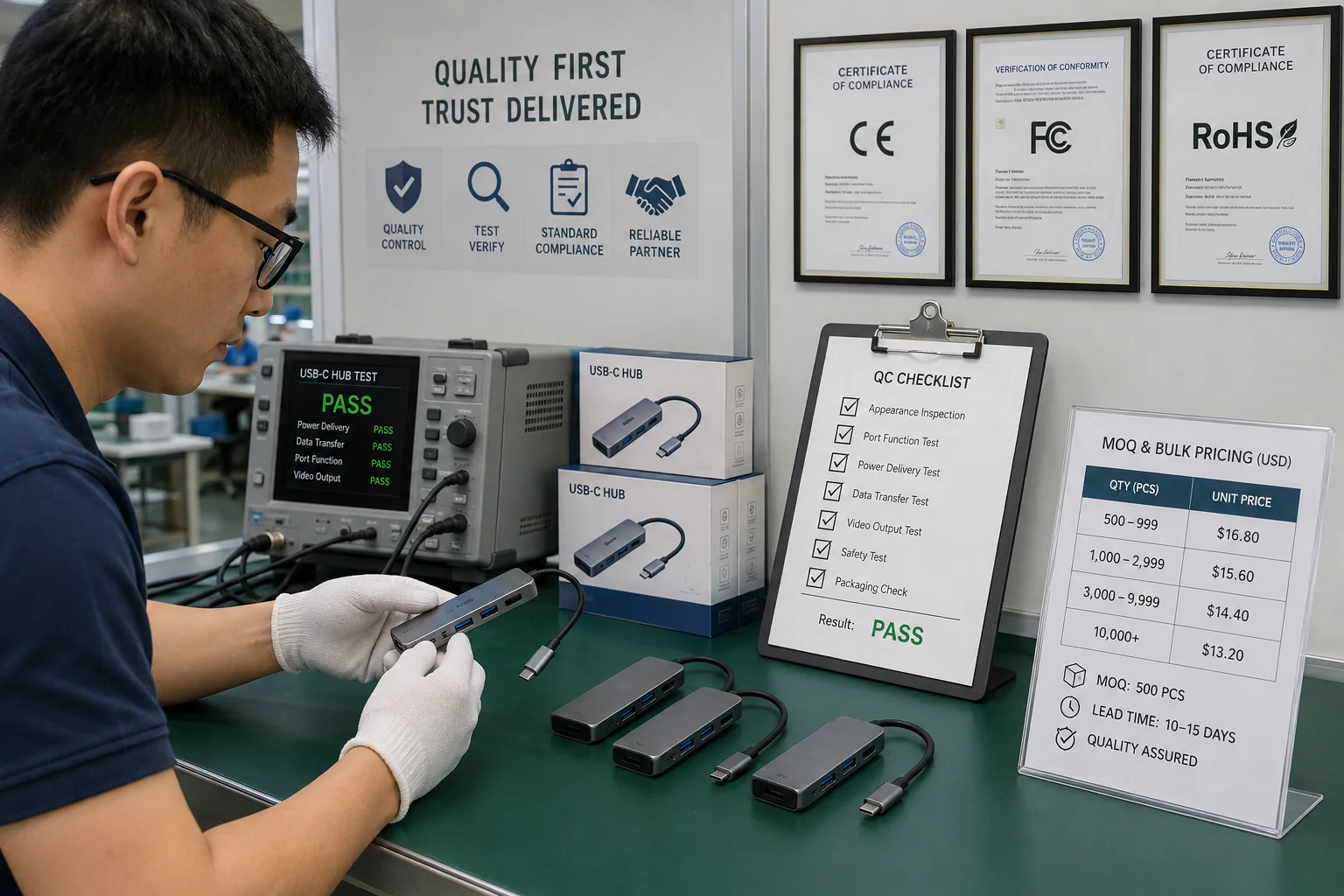
This is the most important step. Always ask for certifications (CE, FCC, RoHS)12, factory defect rate data, and quality control reports. Discuss Minimum Order Quantity (MOQ) and ask for tiered pricing for larger volumes. A trustworthy supplier will be transparent with this information.
In my 15 years in sourcing, I can tell you that price is the last thing you should finalize. First, you must verify the supplier's quality. A cheap hub that fails is much more expensive than a reliable one.
Here is a checklist of questions to ask your potential supplier:
- Certifications: "Can you provide copies of your CE, FCC, and RoHS certificates for this model?" This is a basic requirement for selling in Europe and the US.
- Quality Control (QC): "What is your QC process? Can you share a report from a recent batch? What tests do you run (e.g., heat dissipation, port stability, power delivery tests)?"
- Defect Rate: "What is your factory's average defect rate for this product line? What is your policy for defective units?" A good factory is proud of its low defect rate and will tell you.
- MOQ (Minimum Order Quantity): "What is the MOQ for this model? Is it negotiable for a trial order?"
- Pricing: "Can you provide a tiered price list for 500, 1000, and 5000 units?" This helps you plan your inventory investment.
A reliable partner will welcome these questions. If a supplier is hesitant to share this information, it's a major red flag.
How do I Choose a Reliable Wholesale USB-C Hub and Docking Station Supplier?
You've done your research, but you're still unsure who to trust. How do you pick a long-term partner who will help you grow, not just sell you a box of goods?
Choose a supplier who acts like a partner, not just a vendor. A reliable supplier is transparent about their manufacturing process, offers clear communication, has experience with your target market (Europe/USA), and provides comprehensive support for customization and after-sales service.

Finding a good product is only half the battle. Finding a good partner is what ensures long-term success. After more than a decade of connecting Western buyers with factories, I've seen what separates the great suppliers from the rest. It comes down to a few key things.
First, look for transparency. Do they willingly share test reports, certifications, and details about the chipsets they use? Or are their answers vague? A good partner wants you to be informed.
Second, check their experience. Ask them, "Have you worked with clients in the US/EU before? Are you familiar with Amazon's packaging requirements?" A supplier with experience in your market will anticipate problems before they happen.
Finally, evaluate their communication and support. Do they respond to your inquiries quickly and clearly? Are they open to discussing customization options like adding your logo or changing the packaging? And what is their warranty and after-sales policy? A supplier who stands behind their product is a partner you can build a business with. We've built our company on these principles, knowing that our clients' success is our success.
Conclusion
Choosing the right USB-C hubs is about matching specific configurations to customer needs. Focus on quality, verified specs, and finding a transparent supplier to build a profitable and low-risk product line.
"Computer port (hardware)", https://en.wikipedia.org/wiki/Computer_port_(hardware). Sources in the technology press have documented the trend of laptop manufacturers, led by Apple, removing legacy ports in favor of USB-C to achieve thinner designs, which in turn created a market for dongles and hubs to restore connectivity. Evidence role: historical_context; source type: other. Supports: The claim that modern laptops, particularly thin models like MacBooks and Ultrabooks, have progressively offered fewer ports, creating a market need for external hubs.. ↩
"USB-C - Wikipedia", https://en.wikipedia.org/wiki/USB-C. The introduction of the 2015 MacBook with a single USB-C port is widely cited as the event that created the market for USB-C hubs and adapters, as users needed ways to connect existing peripherals. Evidence role: historical_context; source type: other. Supports: The claim that Apple's introduction of a single USB-C port on the 2015 MacBook and subsequent models catalyzed the creation and rapid growth of the third-party USB-C hub and adapter industry.. ↩
"Is it normal for USB-C hubs to get very warm? : r/SamsungDex - Reddit", https://www.reddit.com/r/SamsungDex/comments/x7h7hw/is_it_normal_for_usbc_hubs_to_get_very_warm/. Technical analyses show that USB-C hubs generate heat as a byproduct of their functions, especially Power Delivery (PD) pass-through charging and high-speed data transfer. The amount of heat depends on the chipset, the number of connected devices, and the enclosure's material and design for dissipation. Evidence role: mechanism; source type: other. Supports: The claim that USB-C hubs can overheat and that this is a concern for users.. Scope note: The source would explain the mechanism of heat generation but may not provide a universal standard for what temperature is considered 'too hot'. ↩
"USB 3.0 may interfere with nearby 2.4ghz wireless devices", https://www.reddit.com/r/buildapc/comments/jfnbbk/til_usb_30_may_interfere_with_nearby_24ghz/. Intel published a white paper in 2012 detailing how the noise from USB 3.0 data transfers can cause radio frequency interference in the 2.4 GHz band, which is used by Bluetooth and older Wi-Fi standards. Poorly shielded hubs or cables can exacerbate this issue. Evidence role: mechanism; source type: paper. Supports: The claim that using certain peripherals with a hub can disrupt wireless connections.. ↩
"Eye Discomfort - UCLA Ergonomics", https://ergonomics.ucla.edu/injuries-and-prevention/eye-strain. Display technology experts and reviewers note that while a 30Hz refresh rate is acceptable for watching video content (often filmed at 24 or 30 fps), it results in noticeable mouse cursor lag and choppy window animations in a desktop environment, making 60Hz the preferred minimum for a fluid user experience. Evidence role: general_support; source type: other. Supports: The claim that a 30Hz refresh rate is noticeably less smooth for general desktop use than 60Hz.. ↩
"Connecting a Mac to an External Display - UConn Knowledge Base", https://kb.uconn.edu/space/IKB/10731880895. Apple's macOS operating system does not support Multi-Stream Transport (MST) over DisplayPort Alt Mode, which is the technology most simple hubs use to drive multiple displays. As a result, when two displays are connected to such a hub, macOS sends the same video stream to both, resulting in mirrored displays rather than an extended desktop. Evidence role: mechanism; source type: education. Supports: The claim that macOS does not support extending desktops across two displays through a single DisplayPort Alt Mode connection from a hub.. ↩
"DisplayLink - Wikipedia", https://en.wikipedia.org/wiki/DisplayLink. DisplayLink is a technology that uses a combination of software drivers and a dedicated chipset within a hub or dock to compress and transmit video data over a standard USB connection. This process functions like an external USB graphics adapter, allowing it to bypass the native video output limitations of a computer, such as macOS's lack of MST support. Evidence role: definition; source type: encyclopedia. Supports: The claim that DisplayLink technology is used in advanced hubs to enable multiple extended displays on systems like macOS.. ↩
"Can anyone properly explain power limitations on a USB hub?", https://www.reddit.com/r/UsbCHardware/comments/108e1en/can_anyone_properly_explain_power_limitations_on/. Technical reviews and tests of USB-C hubs with Power Delivery show that the hub's own circuitry consumes a portion of the power from the connected charger. This overhead is often between 5W and 15W, meaning a 100W charger connected to a 15W hub will only deliver 85W to the laptop. Evidence role: statistic; source type: other. Supports: The claim that USB-C hubs reserve a portion of the incoming power for their own operation, typically in the range of 5 to 15 watts.. Scope note: The exact power consumption varies by hub model, brand, and the number of connected peripherals. ↩
"Charging 16"MBP: 140W vs 85W. What's better in the long run?", https://www.reddit.com/r/macbookpro/comments/1cfffdz/charging_16mbp_140w_vs_85w_whats_better_in_the/. According to Apple's official support documentation, the 16-inch MacBook Pro models (e.g., 2019) are supplied with a 96W USB-C Power Adapter, and earlier 15-inch models were supplied with an 87W adapter, indicating the power required for optimal charging performance. Evidence role: case_reference; source type: government. Supports: The claim that specific models of the MacBook Pro require high-wattage chargers (87W or 96W) to charge at their designed maximum speed.. Scope note: This refers to specific models; power requirements for other MacBook Pro models may differ. ↩
"USB - Wikipedia", https://en.wikipedia.org/wiki/USB. The official USB specifications define the maximum signaling rates for each standard. USB 2.0 (High Speed) supports a rate of 480 Mbps, which is sufficient for keyboards and mice. USB 3.0 (now officially USB 3.2 Gen 1), known as SuperSpeed, supports a rate of 5 Gbps, making it over ten times faster and ideal for transferring large files from external drives. Evidence role: definition; source type: encyclopedia. Supports: The claim that USB 2.0 and USB 3.0 have specified maximum speeds of 480Mbps and 5Gbps, respectively, making them suitable for different tasks.. Scope note: These are theoretical maximum speeds; real-world performance is typically lower due to overhead. ↩
"SD card - Wikipedia", https://en.wikipedia.org/wiki/SD_card. The SD Association defines UHS-I with a theoretical maximum bus speed of 104 MB/s, while UHS-II adds a second row of pins to support speeds up to 312 MB/s. This makes UHS-II readers critical for professionals like photographers and videographers who need to transfer large files quickly. Evidence role: definition; source type: encyclopedia. Supports: The claim that UHS-II SD card readers offer significantly faster performance than UHS-I readers.. ↩
"Equipment Authorization | Federal Communications Commission", https://www.fcc.gov/engineering-technology/laboratory-division/general/equipment-authorization. FCC (Federal Communications Commission) Declaration of Conformity is a requirement for electronic devices sold in the United States. CE marking indicates conformity with health, safety, and environmental protection standards for products sold within the European Economic Area. RoHS (Restriction of Hazardous Substances) restricts the use of specific hazardous materials in electrical and electronic products. Evidence role: definition; source type: government. Supports: The claim that CE, FCC, and RoHS are key certifications for electronics.. ↩