Quick Answer
A USB-A cable is often easy to connect, but buyers can still choose the wrong product when they confuse plug shape with USB speed. That confusion can lead to slow file transfers, unsupported charging expectations, or unnecessary returns. The simple solution is to check the connector shape first, then confirm the cable and device specifications.
Yes, in common setups, you can connect a USB-A cable into a USB-A port that supports USB 3.0 because the plug shape matches. However, a successful physical connection does not guarantee USB 3.0 speed. Actual performance depends on the cable, the host port, the connected device, and the USB protocol supported by every part of the connection.
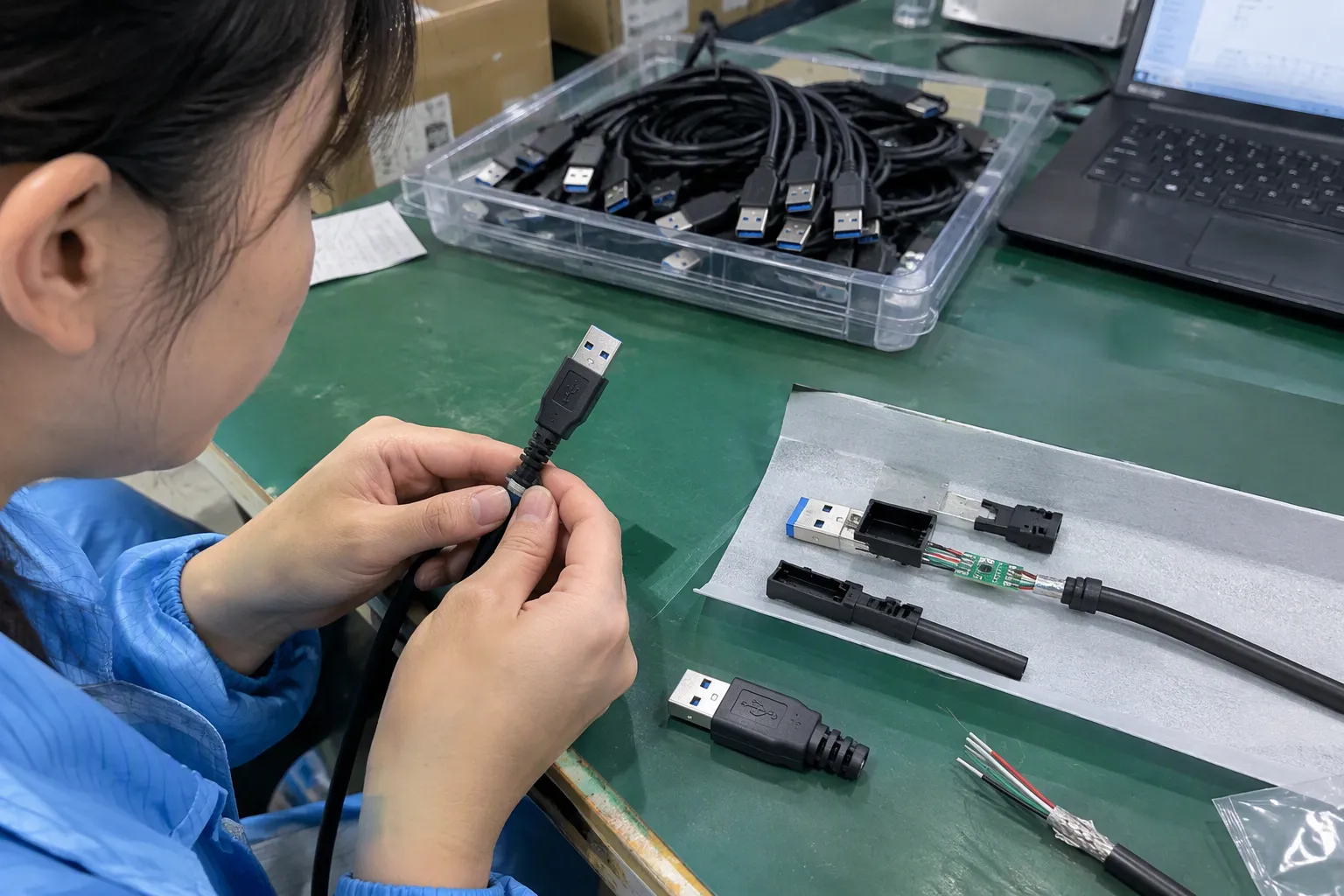
We regularly receive questions from buyers who see “USB 3.0” in a product listing and assume it describes one specific port shape. In practice, USB naming can be confusing. Once you separate the physical connector from the transfer standard, choosing the right USB cable becomes much easier.
Is the Real Question About Whether a USB-A Cable Plug Fits the Port?
A USB-A cable may appear compatible at first glance, but physical fit is only one part of the decision. Buyers often expect high-speed transfer simply because a port has a USB 3.0 label or blue plastic insert. That assumption can create problems when the cable or connected device supports only an older USB standard.
The real compatibility question is whether the USB-A plug physically matches the port, then whether the cable and both devices support the speed and functions required. USB-A identifies a connector shape, while USB 3.0 identifies a data-transfer standard.[1] A USB-A plug can commonly fit a USB-A USB 3.0 port, but speed depends on the weakest component.
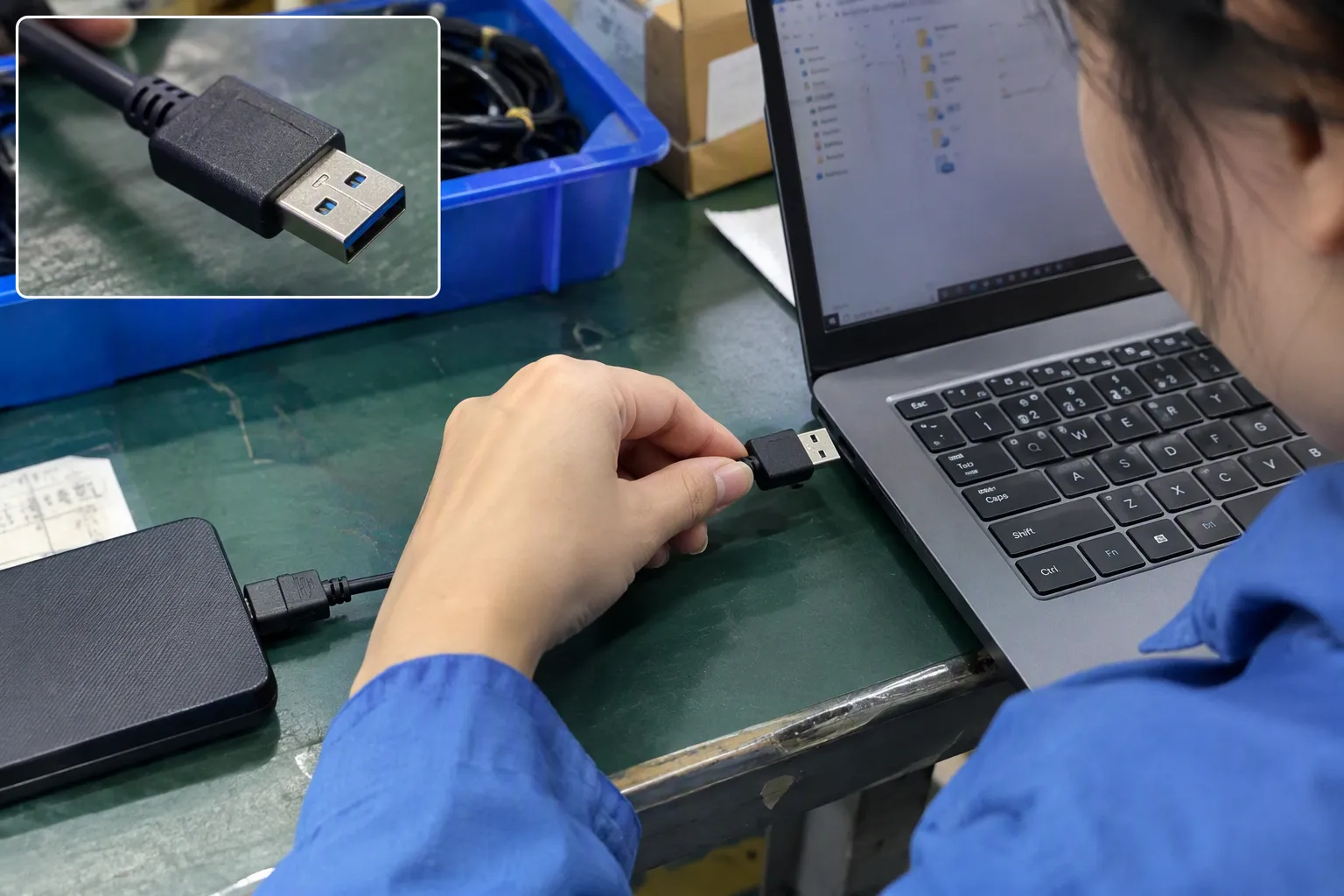
USB-A Describes the Physical Connector Shape
The term USB-A refers to the familiar flat, rectangular USB plug used on many computers, chargers, power banks, adapters, monitors, and peripherals. It is one of the most widely recognized USB connector formats.
When a buyer says, “I need a USB-A cable,” that description is incomplete unless the buyer also identifies the connector on the other end. Common cable combinations include:
- USB-A to USB-C
- USB-A to Micro-USB
- USB-A to Mini-USB
- USB-A to Lightning-compatible connector
- USB-A to USB-B
- USB-A extension cable
- USB-A to USB-A cable for specific equipment applications
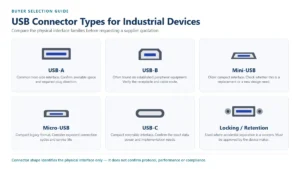
The USB-A end can fit only a corresponding USB-A female port. It will not fit directly into a USB-C, Micro-USB, Lightning, USB-B, or other connector format.
This sounds basic, but it remains one of the most common sourcing issues we see in 3C product discussions. A buyer may ask for a “USB 3.0 cable” when the real requirement is a USB-A to USB-C charging and data cable, or a USB-A extension cable for a computer accessory.
A connector type answers: Will the plug fit?
A USB generation or protocol answers: What level of data performance may be supported?
These are related, but they are not the same thing.
USB 3.0 Describes Transfer Capability, Not One Port Shape
USB 3.0 is a USB data-transfer specification. It is commonly associated with SuperSpeed USB performance, with a theoretical signaling rate of up to 5 Gbps under the original USB 3.0 naming.[2]
The USB naming system later changed. In many specifications, the original USB 3.0 level may also appear as:
- USB 3.1 Gen 1[3]
- USB 3.2 Gen 1[4]
- SuperSpeed USB 5Gbps
This naming history can make product comparisons more difficult. For procurement teams, the practical point is simple: read the actual supported data rate and interface details rather than relying only on a broad “USB 3.0” description.
USB 3.0 capability can appear with different connector types, including USB-A, USB-B, Micro-B SuperSpeed, and USB-C.[5] Therefore, USB 3.0 is not a single port shape.
For example:
| Description | What It Tells You | What It Does Not Tell You |
|---|---|---|
| USB-A | Physical connector shape | Data speed or charging capability |
| USB-C | Physical connector shape | Whether it supports 5 Gbps, 10 Gbps, video, or high-wattage charging |
| USB 2.0 | USB data standard | The exact plug shape |
| USB 3.0 / SuperSpeed 5Gbps | Data-transfer standard | Whether the port is USB-A or USB-C |
| Blue USB-A port insert | Possible visual indicator | Guaranteed USB 3.0 support |
A blue insert inside a USB-A port has often been used to help identify USB 3.0-capable ports. However, it should not be treated as final proof. Some manufacturers use different colors, and some ports have limited documentation. We recommend checking the device manual, product specification sheet, or manufacturer support information.
Can a USB 2.0 USB-A Cable Fit a USB 3.0 USB-A Port?
In many common USB-A setups, yes. A standard USB 2.0 USB-A male plug can usually fit physically into a USB-A female port that supports USB 3.0.[6]
The connection may work for charging, data transfer, keyboards, mice, printers, USB flash drives, and many other accessories. However, the connection will generally operate according to the capability shared by all connected components.[7]
If the cable is USB 2.0, it should not be expected to deliver USB 3.0 SuperSpeed data transfer simply because it is plugged into a USB 3.0-capable port.
A simplified example looks like this:
| Host Port | Cable | Connected Device | Expected Data Level |
|---|---|---|---|
| USB 3.0 USB-A | USB 2.0 USB-A cable | USB 2.0 device | Usually USB 2.0-level performance |
| USB 3.0 USB-A | USB 3.0-capable USB-A cable | USB 3.0 device | May support USB 3.0-level performance |
| USB 2.0 USB-A | USB 3.0-capable USB-A cable | USB 3.0 device | Usually limited by the USB 2.0 host port |
| USB 3.0 USB-A | USB 3.0-capable USB-A cable | Slow storage device | Limited by the storage device or system conditions |
This is why we advise buyers not to select cables based only on the host port. A USB-A cable needs to match the intended application, including the device connector, data requirement, charging requirement, length, and durability expectation.
The Weakest Link Sets the Actual Speed
USB performance is often described as a chain. Every part of that chain matters:
-
Host device port
The computer, hub, docking station, display, vehicle system, or charger must support the required USB standard. -
Cable construction
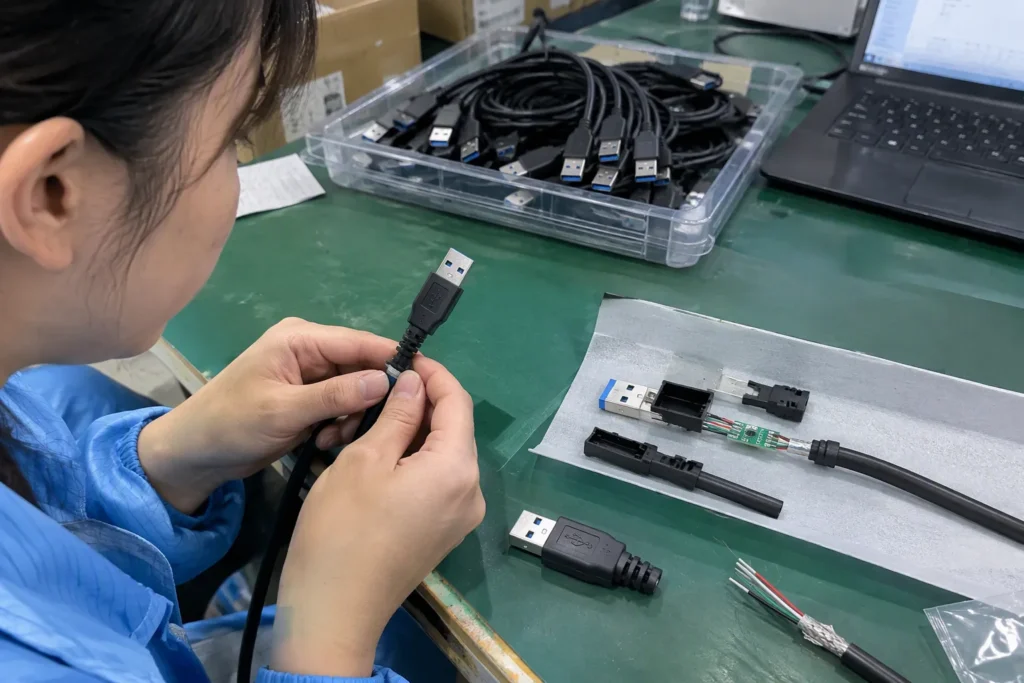
The USB-A cable must have the internal conductors and design needed for the intended data level. A basic charging cable may not be suitable for high-speed data transfer. -
Connected device
The phone, SSD enclosure, USB drive, camera, keyboard, or other device must support the same level of performance. -
Adapters and hubs
An intermediate adapter or hub can reduce available speed, limit power, or add compatibility variables. -
System conditions
Storage speed, device firmware, file size, operating system behavior, and background tasks can affect real-world transfer results.
For example, a buyer may connect a USB-A cable from a laptop’s USB 3.0 port to an external drive enclosure. If the enclosure, cable, and drive all support the necessary protocol, the system may perform at a higher data rate than a USB 2.0 connection. But if the cable is designed only for USB 2.0 data, that cable becomes the limiting factor.
The same principle applies to USB hubs. A USB 3.0 hub may have multiple USB-A ports, but the total available bandwidth is shared across connected devices. A buyer should also check whether the hub’s upstream cable and host connection support the expected performance.
Why Physical Compatibility Can Be Misleading
Physical compatibility is important, but it can create false confidence.
A USB-A plug fits into a USB-A port because the outer dimensions are designed to match. Yet the internal contacts and electrical capability may differ between USB generations.
A USB 3.0 Type-A connector generally includes additional contacts that support SuperSpeed data paths.[8] The connector design maintains backward compatibility with older USB-A connections in many standard applications. This is why older USB-A devices and cables can often work in newer USB-A ports.
However, backward compatibility does not mean equal performance.
Here are several common misunderstandings:
-
“It fits, so it must be USB 3.0.”
Physical fit confirms only that the connector shape matches. -
“The port is blue, so every cable will transfer at USB 3.0 speed.”
The cable and connected device must also support the needed standard. -
“USB-A means USB 2.0.”
USB-A can be used with different USB generations. The connector alone does not define speed. -
“USB-C always means faster than USB-A.”
USB-C is a connector format. Its actual performance depends on the protocol and implementation. -
“A charging cable and a data cable are always the same.”
Some cables are designed primarily for charging and may provide limited or no data functionality, depending on their construction.
For retailers and e-commerce sellers, these distinctions matter because unclear listings can lead to avoidable customer complaints. Product pages should state both the connector configuration and the data capability.
For example, this is clearer:
USB-A to USB-C cable, supports USB 2.0 data transfer up to 480 Mbps, suitable for charging and syncing compatible devices.
This is less clear:
USB 3.0 charging cable.
The second description does not tell the buyer which connectors are used, whether the cable supports full USB 3.0 data performance, or what charging capability is available.
How Should You Check USB-A Cable Compatibility Before Buying?
A practical pre-purchase check can prevent most USB cable selection mistakes. We use a similar process when reviewing product requirements with importers, distributors, and online sellers.
Step 1: Identify Both Connector Ends
First, look at the port on the host device and the port on the accessory or mobile device.
Ask:
- Is the host port USB-A, USB-C, USB-B, or another type?
- Is the device port USB-C, Micro-USB, Lightning-compatible, Mini-USB, or USB-B?
- Do I need a direct cable, an extension cable, or an adapter?
Do not purchase based only on the phrase “USB cable.” The connector combination should always be stated clearly.
Step 2: Confirm Whether You Need Charging, Data, or Both
Some users only need to charge a device. Others need to sync files, connect a peripheral, or use external storage.
A USB-A cable requirement can differ significantly depending on the use case:
| Use Case | Main Requirement | Key Check |
|---|---|---|
| Phone charging | Stable charging support | Connector type and charging specification |
| Phone data sync | Charging and data lines | Confirm data transfer support |
| External SSD | High-speed data | Confirm cable, port, and enclosure capabilities |
| Keyboard or mouse | Basic compatibility | Connector fit and standard USB support |
| USB hub | Data and power capability | Upstream port, power supply, and bandwidth |
| Retail accessory bundle | Clear consumer compatibility | Accurate labeling and packaging information |
For a simple keyboard, USB 2.0-level capability is often sufficient. For portable SSDs, cameras, and large file transfers, a buyer may need a higher-speed cable and compatible port.
Step 3: Read the Data Specification Carefully
When a buyer expects faster transfer, the specification should state the relevant capability. Terms may include:
- USB 2.0, up to 480 Mbps theoretical signaling rate
- USB 3.0 / USB 3.1 Gen 1 / USB 3.2 Gen 1, up to 5 Gbps theoretical signaling rate
- USB 3.2 Gen 2, up to 10 Gbps theoretical signaling rate
- USB4 or other advanced specifications, where applicable
The listed maximum rate is not the same as guaranteed real-world speed. Actual results depend on the complete setup. Still, a clear specification helps buyers compare products more accurately.
For B2B sourcing, we recommend asking suppliers to provide the cable’s connector type, supported USB version, length, conductor configuration where relevant, charging capability, packaging options, and available compliance documents. Buyers should review those documents for the destination market and product application.
Step 4: Do Not Use Port Color as Your Only Check
Blue USB-A ports are often associated with USB 3.0 or SuperSpeed USB, but color conventions are not universal. A black, blue, teal, red, yellow, or uncolored port may be used differently depending on the device manufacturer.
Port color can be a helpful visual clue. It should not replace the official specification.
Check one or more of the following:
- Device user manual
- Product technical specification
- Port markings near the connector
- Manufacturer support page
- System information tools, where available
- Supplier documentation for commercial purchases
This approach is especially useful for buyers purchasing cables in volume. A cable that works for one model of laptop or hub may not meet the desired speed or charging function on another model.
What Should Retailers and Importers Put in a USB Cable Listing?
For B2B buyers, compatibility information should be treated as part of product quality control. Good cable construction matters, but clear product information also reduces returns and supports better customer expectations.
We recommend including the following details in a USB-A cable listing, packaging, or buyer specification sheet:
- Connector configuration: USB-A to USB-C, USB-A to Micro-USB, and so on
- Data standard: USB 2.0, 5 Gbps, or another verified specification
- Charging capability: State the supported charging parameters where applicable
- Cable length: For example, 0.5 m, 1 m, 1.5 m, 2 m, or customized length
- Material and construction: PVC, TPE, braided nylon, connector shell material, strain relief design
- Intended use: Charging, syncing, data transfer, peripheral connection, or external storage
- Compatibility statement: Use careful language such as “compatible with devices featuring a USB-C port”
- Packaging details: Retail box, polybag, barcode label, private label, or custom branding options
- Compliance documents: Request and verify documents relevant to the intended market and product category
We have found that buyers benefit when interface type and performance capability appear as separate fields in a product specification. This prevents a common mistake: describing a cable as “USB 3.0” while leaving the actual connector type unclear.
A practical specification format could look like this:
| Specification Item | Example of Clear Information |
|---|---|
| Product name | USB-A to USB-C data and charging cable |
| Host connector | USB-A male |
| Device connector | USB-C male |
| Data capability | USB 2.0, up to 480 Mbps theoretical rate |
| Length | 1 meter |
| Main use | Charging and data synchronization |
| Packaging | Custom retail packaging available |
| Buyer verification | Confirm device compatibility and required charging performance |
This format is more useful than a short, broad product title. It also gives wholesalers, chain stores, and online sellers clearer content for their own listings.
Frequently Asked Questions
Can I plug a USB 2.0 USB-A cable into a USB 3.0 port?
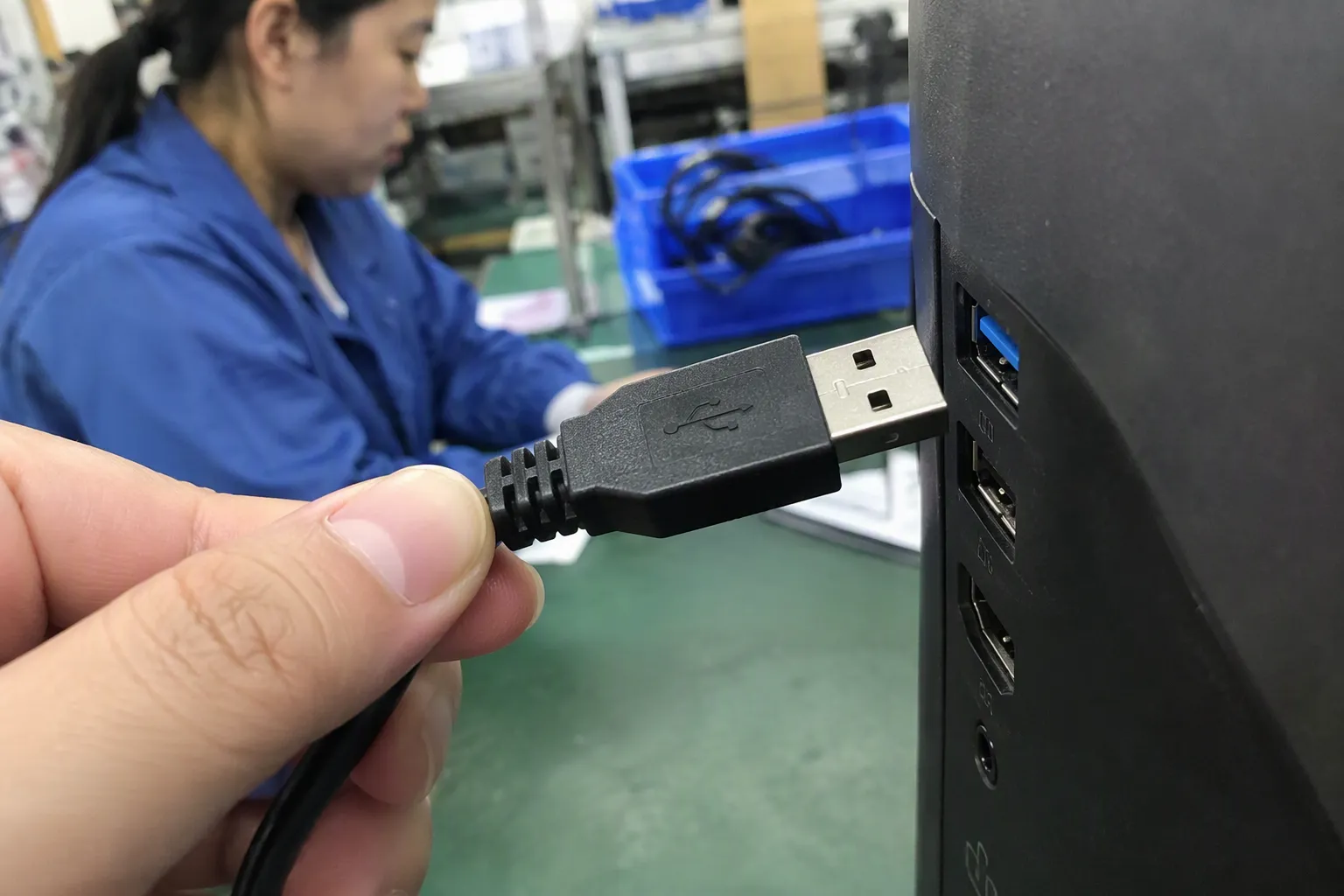
Yes, in many common USB-A configurations, a USB 2.0 USB-A cable can physically plug into a USB-A port that supports USB 3.0. The connection will typically work at the highest level supported by all components, which may be USB 2.0-level performance.
Does a blue USB port always mean USB 3.0?
No. Blue plastic inside a USB-A port is often used as an indicator of USB 3.0 or SuperSpeed capability, but it is not a universal rule. You should check the device manual, printed markings, or manufacturer specifications before making a purchase decision.
Will every USB-A cable provide USB 3.0 speed?
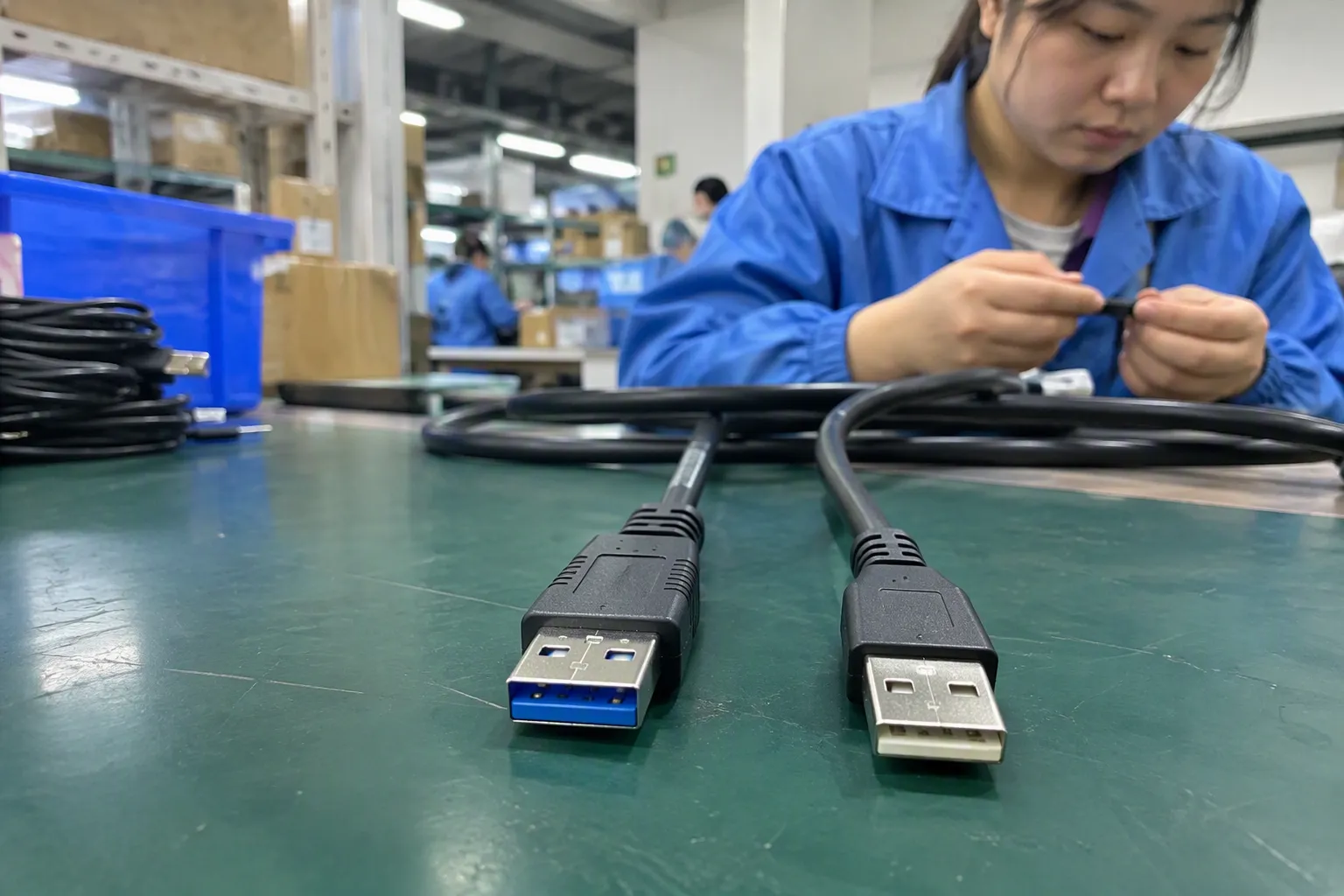
No. A USB-A cable can have the same outer connector shape while supporting different data capabilities. To achieve USB 3.0-level performance, the host port, cable, connected device, and any hub or adapter should all support the required standard.
Is USB-A the same as USB 3.0?
No. USB-A describes a physical connector shape. USB 3.0 describes a data-transfer standard. A USB-A port or USB-A cable may support USB 2.0, USB 3.0-level performance, or another USB implementation depending on the product specification.
How do I choose the right USB-A cable for my device?
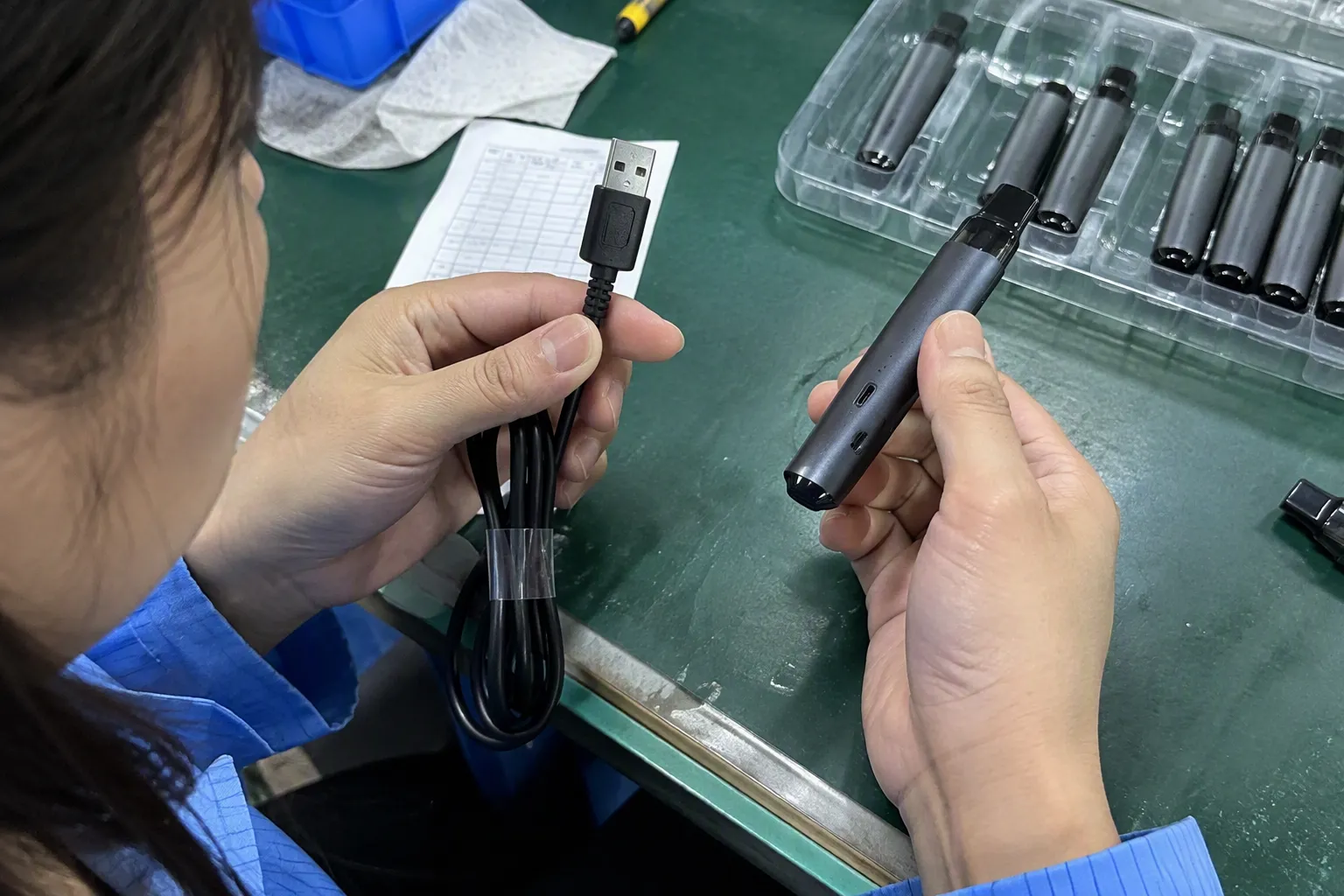
First, identify the connector type on both devices. Then decide whether you need charging, basic data transfer, or higher-speed data transfer. Finally, check the cable specification and your device documentation. Do not rely only on port color or the general wording on a product listing.
Conclusion
A USB-A cable can commonly connect to a USB-A port that supports USB 3.0, but the physical connection alone does not confirm high-speed performance. USB-A describes the plug shape, while USB 3.0 describes data capability. Buyers should check the connector format first, then verify the cable, host port, device, and any adapters or hubs. If you are sourcing USB cables for retail, wholesale, or e-commerce, we can help you review connector options, specifications, packaging, MOQ, and customization requirements before you place an order.
Sources
- Document Library", USB specifications distinguish the Type-A receptacle and plug form factor from the USB 3.x data architecture; connector shape alone does not identify a device's supported transfer mode
- USB 3.2 Specification", The USB Implementers Forum identifies SuperSpeed USB as operating at a signaling rate of 5 Gbps, the rate historically associated with USB 3.0
- What's the Difference between USB 3.0, 3.2 Gen 1 and ...", USB-IF nomenclature documentation describes the 5 Gbps SuperSpeed tier previously marketed as USB 3.0 as USB 3.1 Gen 1
- What's the Difference between USB 3.0, 3.2 Gen 1 and ...", USB-IF branding materials associate USB 3.2 Gen 1 with SuperSpeed USB 5Gbps, the capability level formerly called USB 3.0
- USB Types and Connectors Guide", USB connector specifications document SuperSpeed implementations across several connector families, including Type-A, Type-B, Micro-B, and Type-C; therefore, a USB generation is not itself a connector shape
- USB Type-A Connectors – 2.0/3.0, Long-Life ...", The SuperSpeed Type-A connector design retains the legacy USB 2.0 contact interface, enabling a compliant USB 2.0 Type-A plug to mate with a SuperSpeed Type-A receptacle
- USB 3.2 Specification", USB interoperability guidance describes backward-compatible operation in which the usable link mode is limited to a mode supported by the connected host, peripheral, and interconnect
- USB Types and Connectors Guide", The SuperSpeed Type-A connector specification adds contacts for SuperSpeed transmit and receive paths while retaining the legacy USB 2.0 contacts